What to do if I can't extend my GPU reservation?
Sometimes, you may find that you are unable to extend your GPU reservation through the GPU reservation portal, because the GPU resources are fully booked by other users. As shown in the picture below, V100 and P40 GPUs are fully booked:
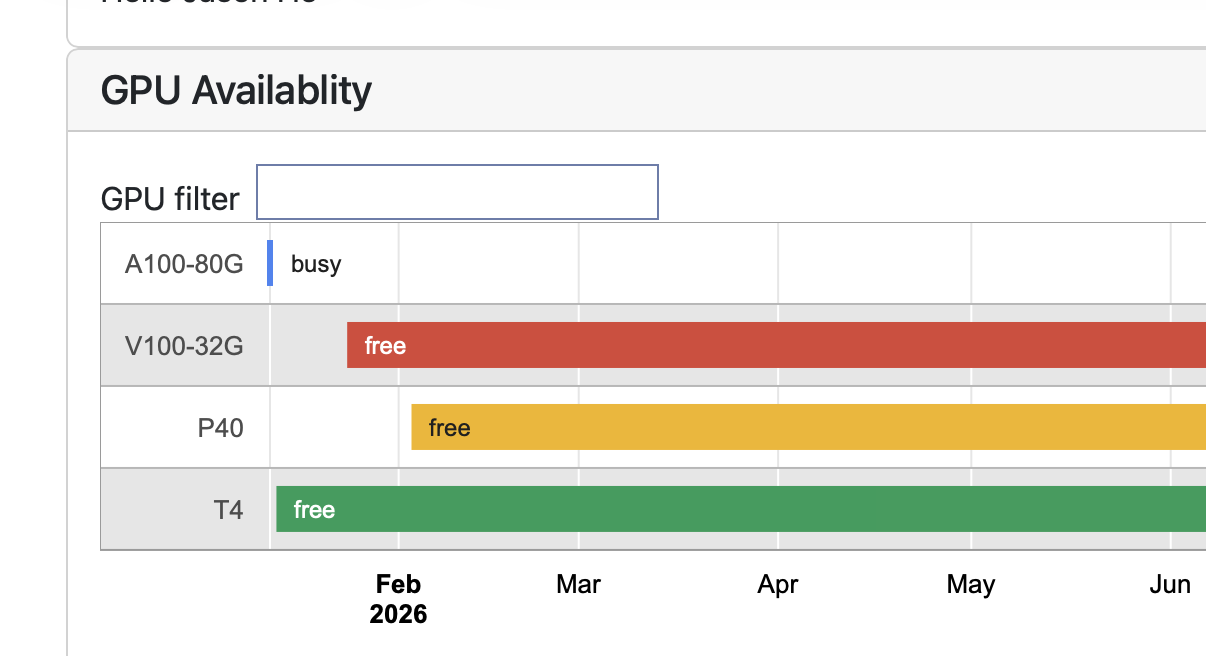
In this case, after your current reservation expires, the GPU instance you are using will be automatically terminated by the system. This article explains what you can do to resume your work after your GPU instance is terminated.
What happens when my GPU reservation expires?
When your GPU reservation expires, the GPU instance you are using will be automatically terminated by the system. This means that the instance will be shut down and all data stored on its root disk will be deleted. However, any volumes you have attached to the instance will remain intact and can be re-attached to a new instance later.
When your reservation is about to expire, you will receive reminder emails from our GPU reservation system. At this point, please make sure you have backed up all your important data from the GPU instance to a safe location. It’s also important to clarify what will be deleted and what will be retained after the GPU instance is terminated:
Things that will be deleted:
- The GPU instance itself, including all data stored on its root disk (E.g., your home directory, the applications that you installed to the root disk).
- The IP address assigned to the GPU instance. This IP address will be released back to the IP pool and may be assigned to other users in the future.
Things that will be retained:
- Any volumes you have attached to the GPU instance. These volumes will remain intact and can be re-attached to a new instance later.
- Your SSH key pairs stored in the Nectar system.
So, it’s strongly recommended to save your data to volumes instead of the root disk of the GPU instance.
Taking snapshots of your root disk
To backup data in your root disk, you can use the snapshot feature provided by Nectar. Please refer to Snapshots for more information.
If your root disk is large, creating a snapshot may take some time. Therefore, it’s recommended to create the snapshot well before your reservation expires. Also, please make sure you have enough quota in your project to store the snapshot. Finally, changes made to the root disk after creating the snapshot will not be saved. So, please create the snapshot only when you have finished all your work and are ready to terminate the GPU instance.
Resuming your work after relaunching a GPU instance
After your GPU reservation expires and the instance is terminated, you can make a new GPU reservation by following the steps in How to launch a GPU instance in Auckland cluster. Instead of using the prebuilt CeR image, you choose the snapshot you created earlier as the image for the new instance. This way, all your data and applications stored in the root disk will be restored to the new instance.
When launching the new GPU instance, please make sure to attach the volumes that you used in the previous GPU instance. This way, you can retain all your data stored in those volumes.